How to Use Resume Tailor
Step-by-step guide to tailoring your resume for any job in under 2 minutes. Match keywords, highlight relevant experience, and beat the ATS.
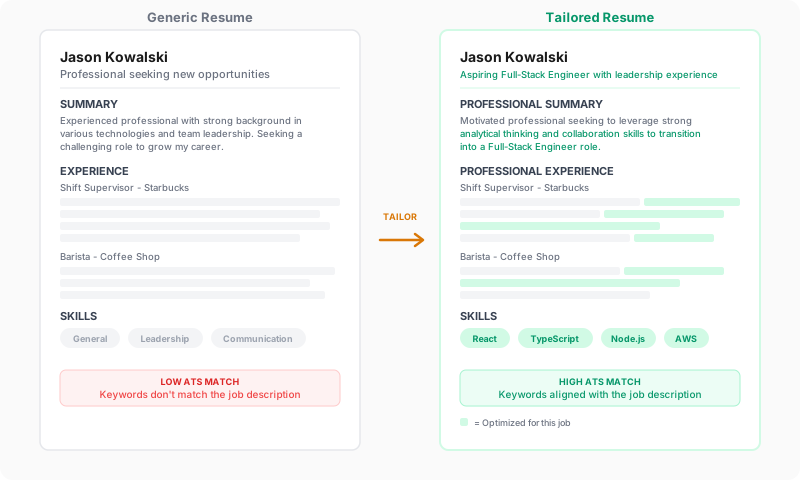
Resume Tailor is ReviseCV’s core feature. It takes your existing resume and optimizes it for a specific job posting, matching keywords and highlighting the experience that matters most to that employer.
This guide shows you exactly how to use it.
When to Use Resume Tailor
Use Resume Tailor when you:
- Have a specific job you’re applying to
- Want to maximize your match with the job description
- Need to get past ATS (Applicant Tracking Systems)
- Want to save the 30-60 minutes it takes to manually tailor a resume
If you don’t have a specific job in mind, use Improve Resume instead.
Step-by-Step Walkthrough
Step 1: Select Tailor Resume
From the Tools page, click Tailor Resume. You’ll see a three-step process: Resume, Job, Generate.
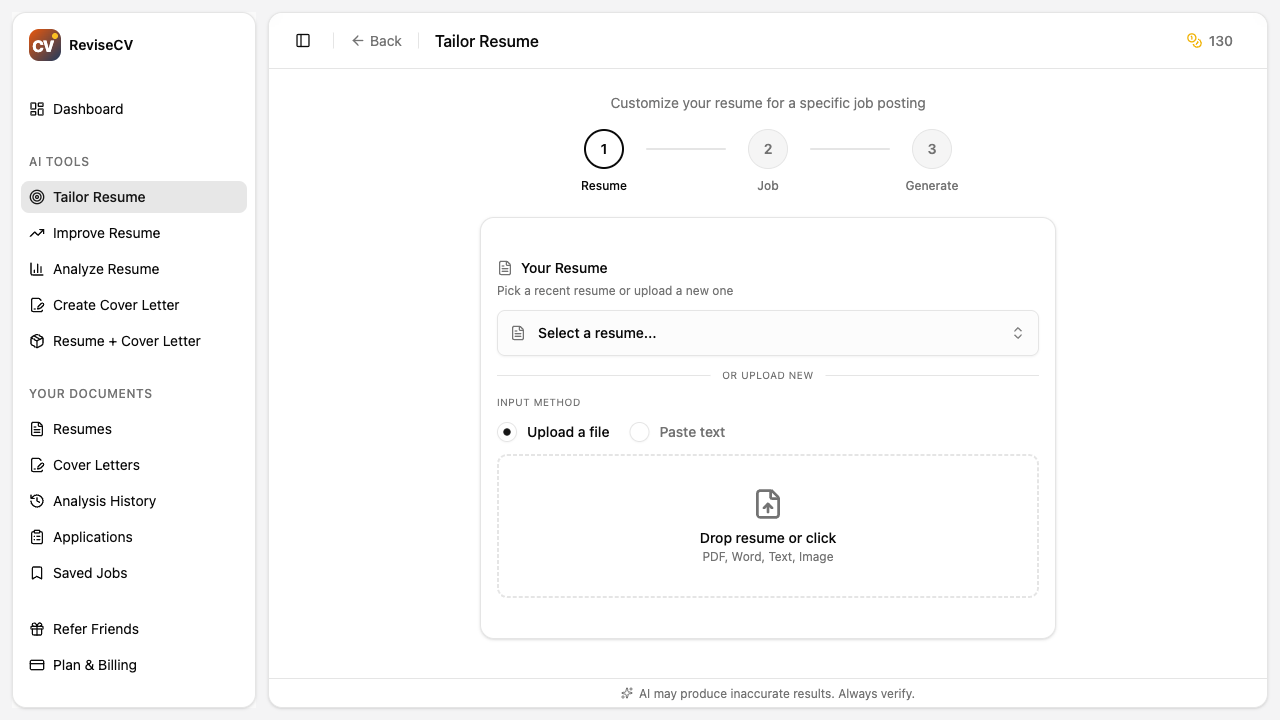
Step 2: Add Your Resume
You have three options:
Paste text: Copy your resume content and paste it directly into the text area. This works well if you have your resume in a document you can copy from.
Upload a file: Click the upload button to select a PDF or Word document. ReviseCV will extract the text automatically.
Select existing: If you’ve used ReviseCV before, your saved resumes will appear here. Just click to select one.
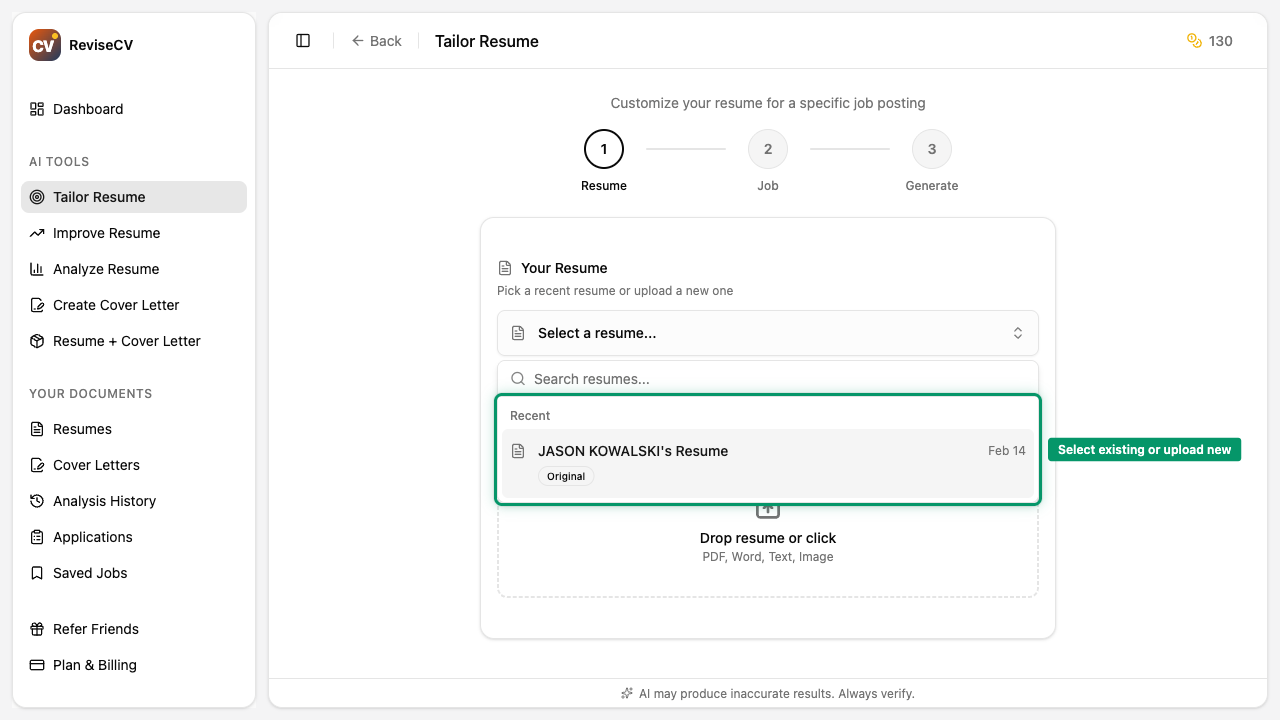
Pro tip: Include everything. Your full work history, all skills, certifications, and achievements. ReviseCV will choose what to emphasize based on the job, but it can only work with what you give it.
Step 3: Paste the Job Description
Click Next to move to the Job step. Paste the complete job posting here.
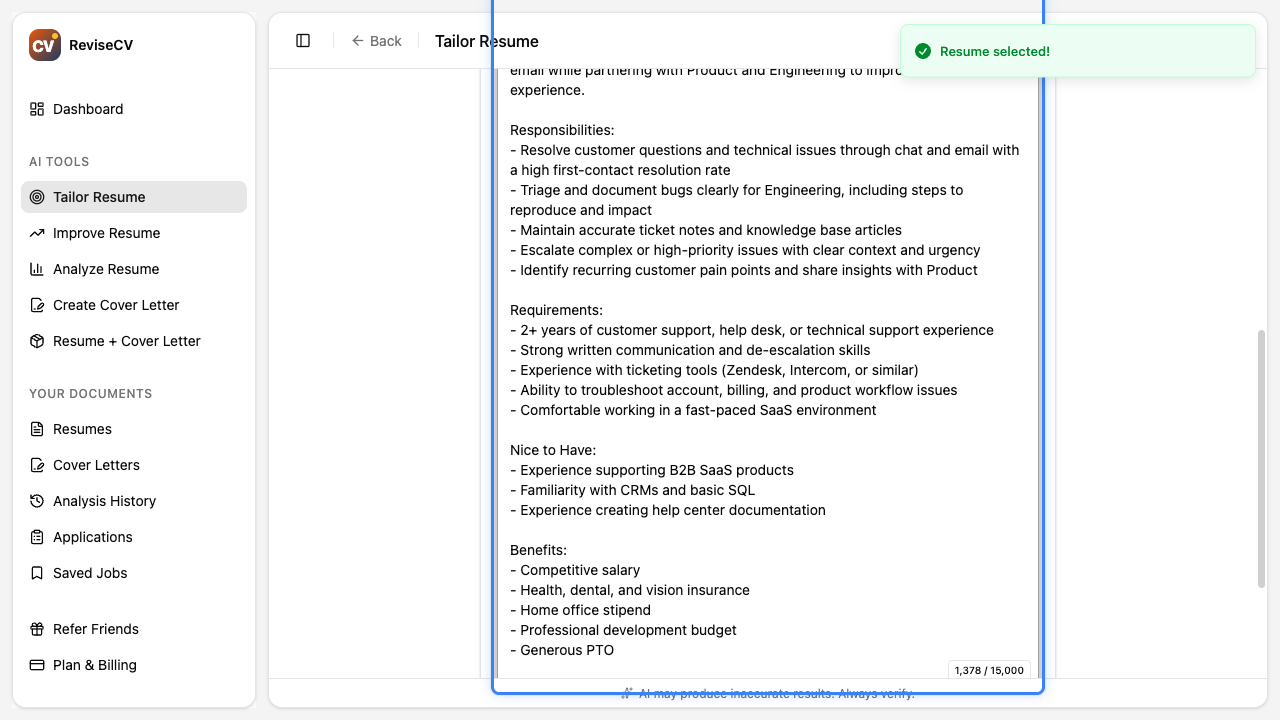
What to include:
- Job title
- Responsibilities and duties
- Required qualifications
- Preferred qualifications
- Company description (if available)
The more detail you provide, the better the match. Copy the entire job posting rather than just the key points.
Step 4: Choose a Template
Before generating, you can select which template to use for the final resume. Click the template selector to browse options.
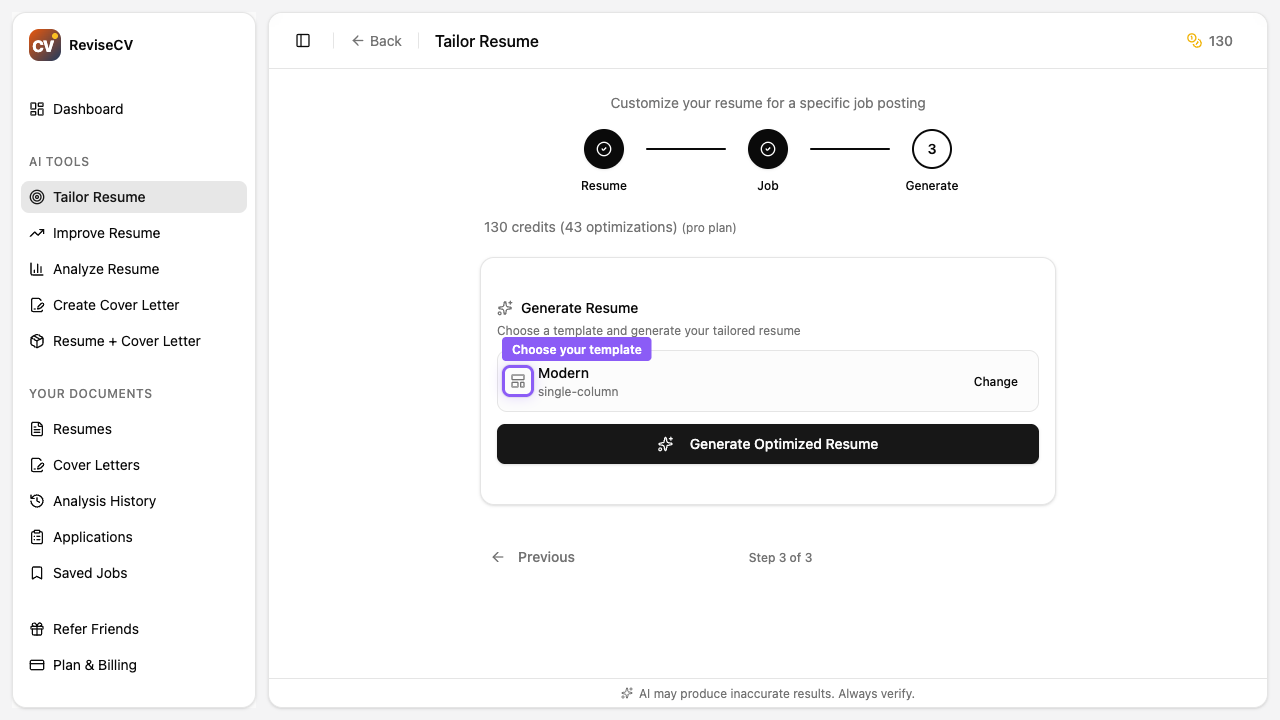
All templates are ATS-compatible, so choose based on your industry and personal preference.
Step 5: Generate
Click Generate Optimized Resume to start the optimization. This typically takes 15-30 seconds.
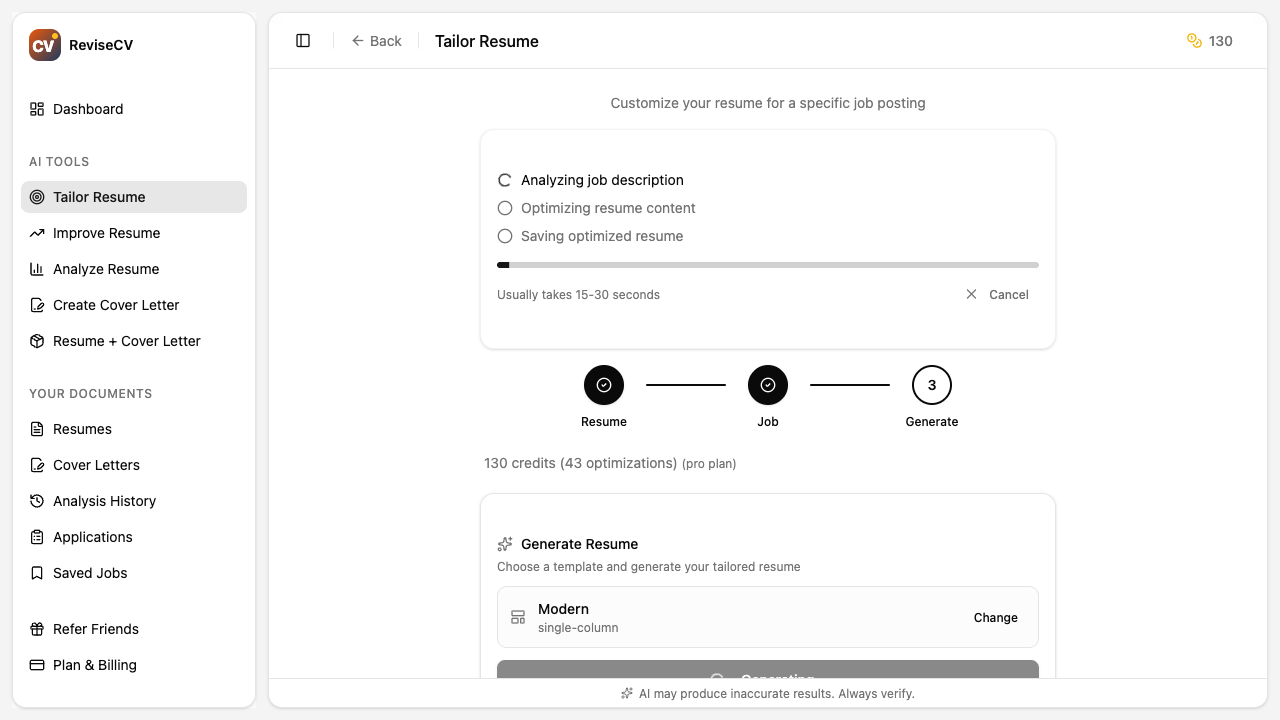
During generation, ReviseCV:
- Analyzes the job description for key requirements and keywords
- Reviews your resume content
- Reorganizes and rephrases to highlight relevant experience
- Matches keywords where your experience supports them
- Formats everything for ATS compatibility
Step 6: Review Your Results
Once complete, you’ll see your tailored resume. Review it carefully.
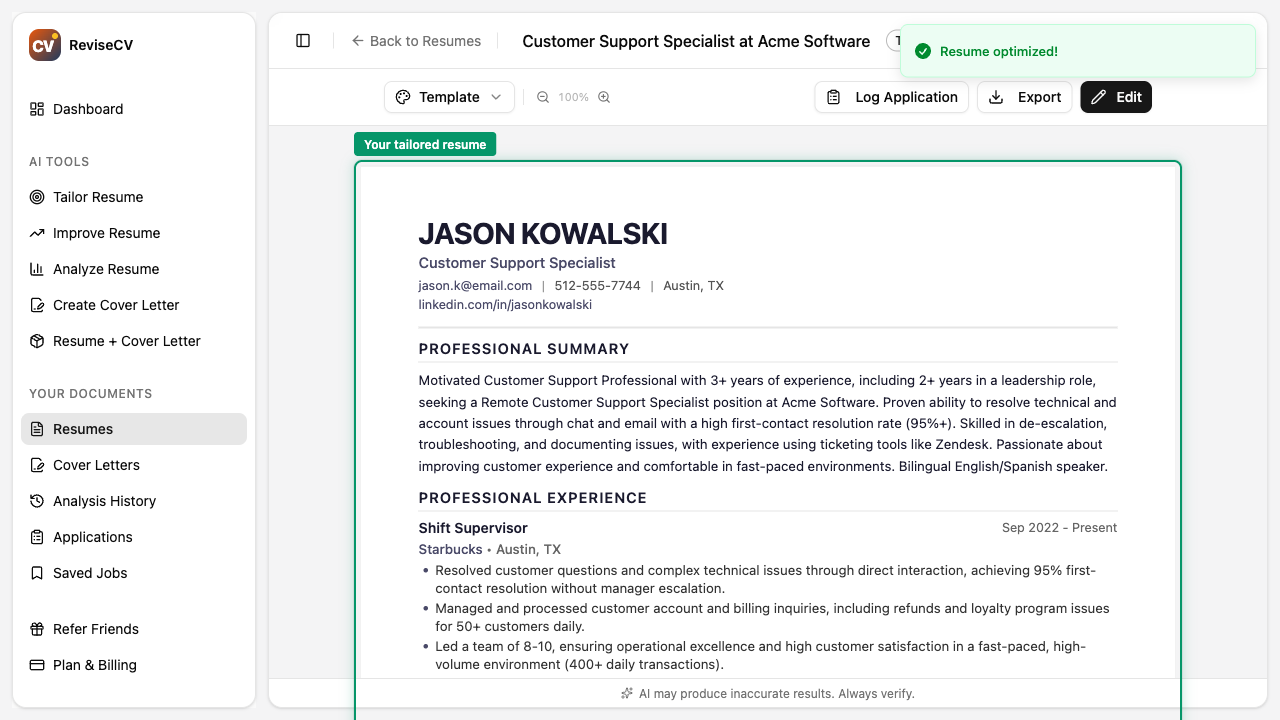
Things to check:
- Does the summary accurately represent your fit for this role?
- Are your most relevant experiences highlighted?
- Do the skills match what the job asks for?
- Is everything factually accurate to your actual experience?
You can click into any section to make edits if needed.
Step 7: Download
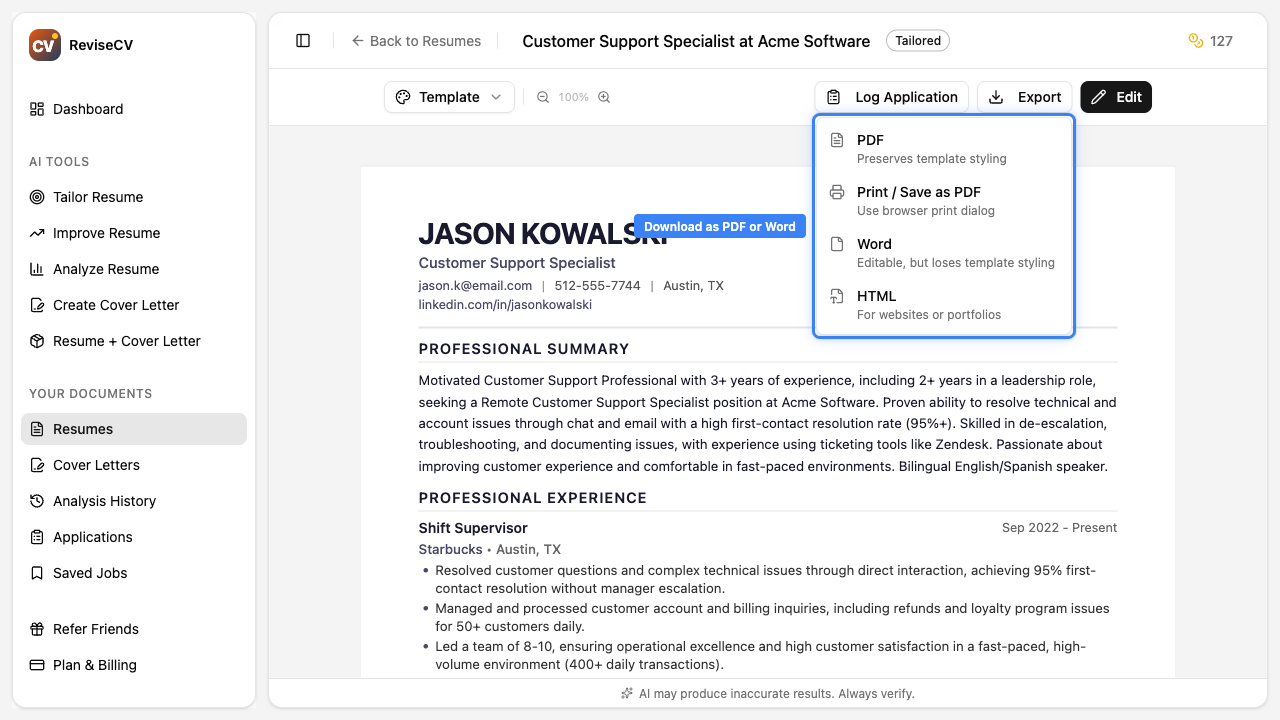
When you’re satisfied, download your resume. Options include:
- PDF: Best for most applications. Clean, professional, preserves formatting.
- Word (.docx): If the employer specifically requests Word format.
What Gets Changed (and What Doesn’t)
ReviseCV Does:
- Reorder bullet points to put the most relevant first
- Rephrase descriptions to include matching keywords
- Adjust your summary to align with the job
- Emphasize skills mentioned in the job posting
- Format for ATS readability
ReviseCV Does Not:
- Add experience you don’t have
- Fabricate skills or certifications
- Change job titles or company names
- Add false metrics or achievements
- Remove information (though it may de-emphasize less relevant items)
Your resume stays authentic. ReviseCV just presents your real experience in the best possible way for each specific job.
Tips for Better Results
Be thorough with your source resume. If you have experience that might be relevant, include it. ReviseCV can only emphasize what you provide.
Copy the full job posting. Don’t summarize or cherry-pick. The AI needs context to understand what the employer values.
Review the output. AI is a tool, not a replacement for your judgment. Make sure everything sounds like you and accurately represents your background.
Save your base resume. Keep your comprehensive, un-tailored resume in ReviseCV. You can quickly select it for each new job application.
What’s Next?
- Understanding Your Resume Score: See how well your resume matches before and after tailoring
- How to Create a Tailored Cover Letter: Complete your application with a matching cover letter
- Choosing the Right Template: Pick the best format for your industry
Ready to tailor your resume? Start now.